System Profiles

System Profiles are primarily used for selecting mobile asset (subscriber) service (APN) and their service quality such as bandwidth. A System Profile includes an order list of applicable APN profiles and additional extension values for setting custom parameters. Each APN profile in the System Profile, includes a reference to APN object and maximum download and upload bit rates values. The maximum download and upload values in the APN profiles overrides the values configured in the APN object for the System Profile. Otherwise, maximum download and upload vales from the APN object is used by the System Profile.
Note
They can be applied only to Mobile Assets belonging to the Systems specified in the System Profile.
Multiple System Profiles can be created and made available for Mobile Assets of the same System. For example, create tiered service levels by creating three Profiles (bronze, silver, and gold) each with successively higher bandwidth levels. Different APN profile is applied depending on the APN used by the mobile asset to connect the network.
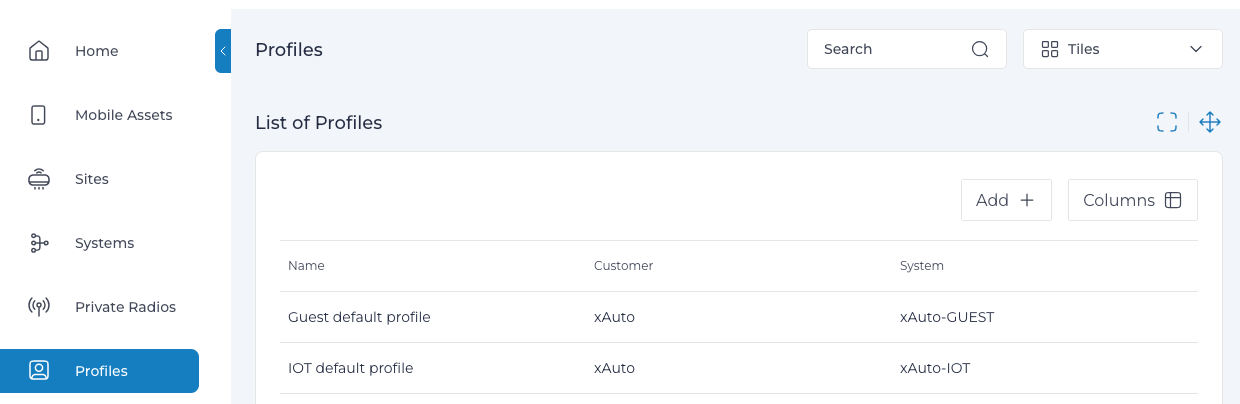
Add or Edit a System Profile⚓︎
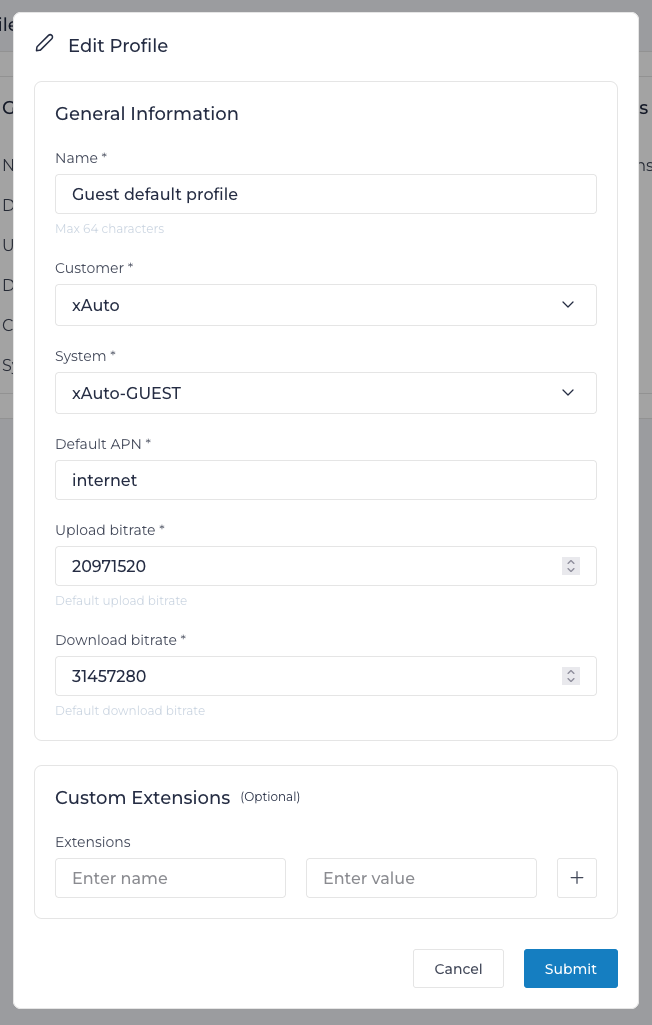
- Navigate to System Profiles.
- Click Add or click an existing System Profile Name to edit.
- Type a Name of the Profile. For example: Gold
- Click Customer and select a Customer from the list. The Profile is only available for the selected Customer.
- Click System and select one or more System from the list. Once selected, the System Profile is only available for Mobile Assets accessing this System.
- Click Submit.
Set Extensions for Profiles⚓︎
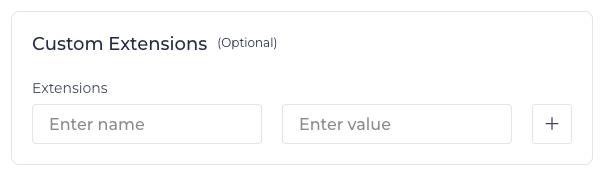
In the Edit Profile dialog box, you can add custom extensions.
Note
Extensions set in the System Profile override the same Extensions set at the Customer and System level.
Info
For more information on creating Extensions, see Extensions page.
Add APN Profiles for the System Profiles⚓︎
- Select APN Profiles tab.
- Click Add APN Profile.
- Select APN from the list.
- (Optional) Enter Upload Bitrate and Download Bitrate override values.
- (Optional) Select QoS from the list.
- (Optional) Carrier APN Overrides: You can define carrier-specific QoS and bitrate overrides.
- Click Add Carrier Override.
- Select a Carrier.
- Specify carrier-specific Download, Upload, or QoS values, all are optional but at least one is required.
- Click Submit.
Note
Carrier APN Overrides take precedence over both the APN Profile values and the APN Global values for subscribers roaming on the specified carrier.
Understanding QoS/QCI and Carrier Overrides⚓︎
In 3GPP mobile networks, the Quality of Service (QoS) and specifically the QoS Class Identifier (QCI) determine how data traffic is prioritized and treated by the radio network. QCI is a scalar value that defines specific packet delay budgets, packet error loss rates, and priority levels.
Standard vs. Operator-Defined QCI⚓︎
The 3GPP specifications define two categories of QCI values: * Standardized QCI Values: These values (typically 1–9 and certain others like 65, 66, 69, 70) are defined globally by 3GPP. Every network operator following the spec should treat these values with the same characteristics (e.g., QCI 1 is always for conversational voice with a 100ms delay budget). * Operator-Specific QCI Values: Operators are permitted to define their own custom QCI values (typically in the range of 128–254). These values allow for proprietary QoS levels tailored to specific enterprise needs or unique applications.
The Importance of Carrier Overrides for Custom QCIs When roaming, using operator-specific QCIs becomes a challenge. A custom QCI value defined on your home network (HPLMN) will likely not be recognized by a roaming partner's network (VPLMN). If a device attempts to attach using a custom QCI that the VPLMN doesn't support, the session may be downgraded to a default best-effort level or, in some cases, the attach request may be rejected entirely.
By using Carrier APN Overrides, you can ensure that your devices always request a safe, standardized QCI value (like QCI 9) when roaming, while still utilizing your high-performance custom QCIs while on your home network.
Similarly, the Aggregate Maximum Bit Rate (APN-AMBR) dictates the maximum upload and download bandwidth allowed across all non-guaranteed bearers for that APN.
Why Override per Carrier? When a mobile asset leaves your home network and roams onto a partner's network (Visited PLMN / VPLMN), the network must agree on the QoS parameters. Different roaming partners often have different infrastructure capabilities, Service Level Agreements (SLAs), or pricing models.
Configuring Carrier APN Overrides allows administrators to dynamically adjust the requested QCI and bitrates depending on the network the device attaches to. This is crucial for: - Cost Control: Throttling download/upload bitrates (AMBR) when assets roam onto expensive partner networks. - SLA Compliance: Downgrading a high-priority QCI to a standard best-effort QCI if the roaming partner does not support or heavily charges for premium QoS classes. - Compatibility: Ensuring the attach request isn't rejected by a Visited PLMN that doesn't recognize a specific custom QCI value configured on your home network.