Extensions
Overview⚓︎
Extensions are a powerful tool in Expeto xControl that allow users to customize configurations and extend functionalities beyond the standard GUI settings. They enable flexibility in managing Mobile Assets, System Profiles, Systems, Sites, and Customers by providing additional parameters that can enhance network operations.
Key features of Extensions include:
- Adding custom configurations, such as static IP addresses, to provide stability and reliability for connected devices.
- Tagging network elements with labels for better organization and easier searches.
- Enhancing features through scripts for tasks not available in the GUI.
- Strengthening security measures, such as IMEI locking, to restrict network access to authorized devices.
Extensions follow a hierarchical structure, enabling higher-level configurations to be overridden at more specific levels for greater control. They are instrumental in improving asset management, optimizing configurations, and ensuring secure and efficient network operations.
Searching for Mobile Assets with Extensions⚓︎
Extensions enhance search functionality by allowing you to locate Mobile Assets or other entities based on custom labels or parameters. For example, if an extension labeled Membership VIP is applied to a Mobile Asset, searching for "vip" in the Mobile Assets list will return all assets tagged with this extension.

Extensions can be applied at different levels, such as the System Profile, System, or Mobile Asset. Conflicting extensions may exist, and searches will return all matching values.
Use Cases for Extensions⚓︎
Add a Label to a Mobile Asset⚓︎
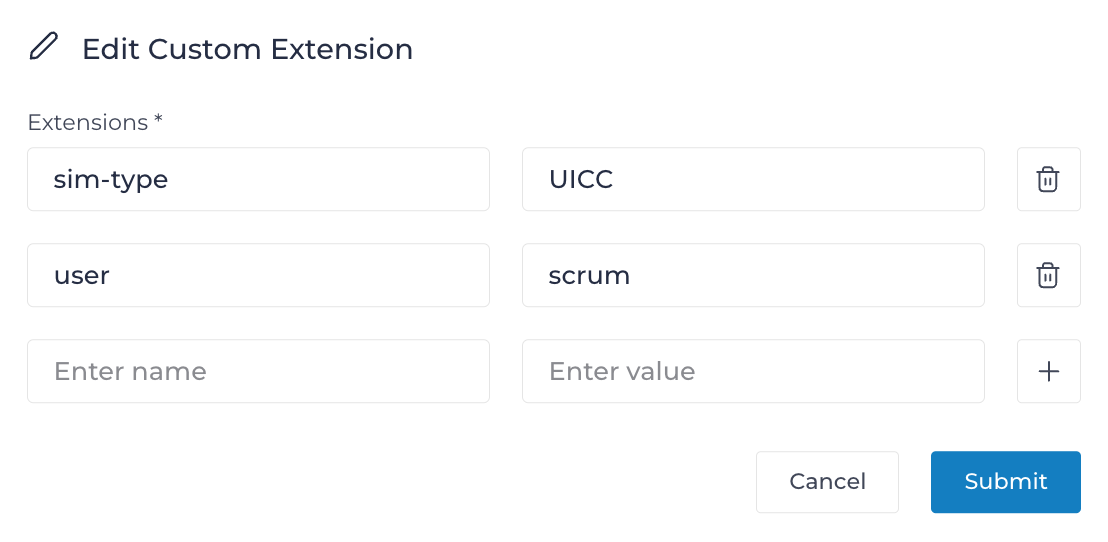
A common use of Extensions is to add labels to Mobile Assets for easier identification and organization. Labels can also be used as search criteria in the search field. For example:
- To find all objects tagged with a specific label, search for the label name (e.g., sim-type or user).
- To find a specific value for a label, use
label=value(e.g., sim-type=UICC or user=lisa).
Using Extensions in Scripts⚓︎
Extensions can be used to enhance functionality not currently available through the GUI. By tagging a Mobile Asset with an extension, you can find it using search or integrate it into scripts for automation.
Extension Hierarchy⚓︎
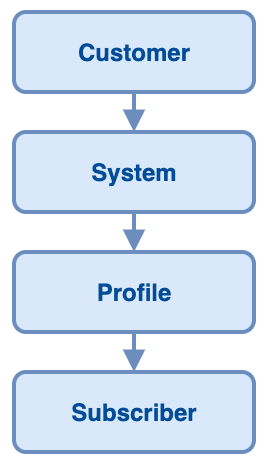
Extensions follow a hierarchy, where values set at higher-level entities can be overridden by conflicting values set at lower levels. The hierarchy is as follows:
- Customer
- Site
- System
- System Profile
- Mobile Asset
Note
While lower-level values override higher-level ones for functionality, searches use a logical OR and return all matches.
Assign a Static IP Address⚓︎
Assigning a static IP address to a Mobile Asset provides stability and reliability, especially for IoT devices requiring constant connectivity. A static IP address allows direct remote access to the device and can be whitelisted for firewall rules.

Conditions for Static IP Assignment:⚓︎
- The keyword ip must be in lowercase.
- The IP address must belong to the subnet of the attached Mobile Asset.
- The IP address must be designated for static assignment and excluded from the dynamic IP pool.
- The device's APN must be configured correctly; otherwise, it will default to dynamic addressing.
Configure IMEI Locking⚓︎
The IMEI is a unique serial number assigned to a device by the manufacturer. IMEI locking enhances security by ensuring that a SIM card is used only in its designated device. If locked, the SIM card cannot access the network if moved to a different device.

Conditions for IMEI Locking:⚓︎
- The keyword imei must be in lowercase.
- The value must be exactly 15 characters unless using the wildcard
*. - An IMSI can be locked to only one IMEI.
Note
You can display the IMEI on many devices by dialing *#06#.