Reports⚓︎
Note
The appropriate Generate Reports permission is required to access this functionality.
Overview⚓︎
The Reports feature in xControl allows administrators to generate various types of Call Detail Reports (CDRs) on-demand for billing, auditing, and informational purposes. Reports can be customized for a specific Customer and date range, capturing critical insights into data usage, network activity, and subscriber details.
Administrators can access generated reports in the following ways:
- Download directly from Files within the xControl interface.
- Retrieve via a GET call to an API endpoint.
- Access through a previously configured SFTP connection.
The scope and content of each report depend on the selected report type and generation parameters. For example, reports can detail data usage per Subscriber in bytes or aggregate usage by Site.
This robust reporting system supports flexible access and granular customization, enabling organizations to monitor their network operations effectively and optimize resource allocation.
Generating a Report⚓︎
To generate a report:
-
Navigate to the Reports section in xControl.
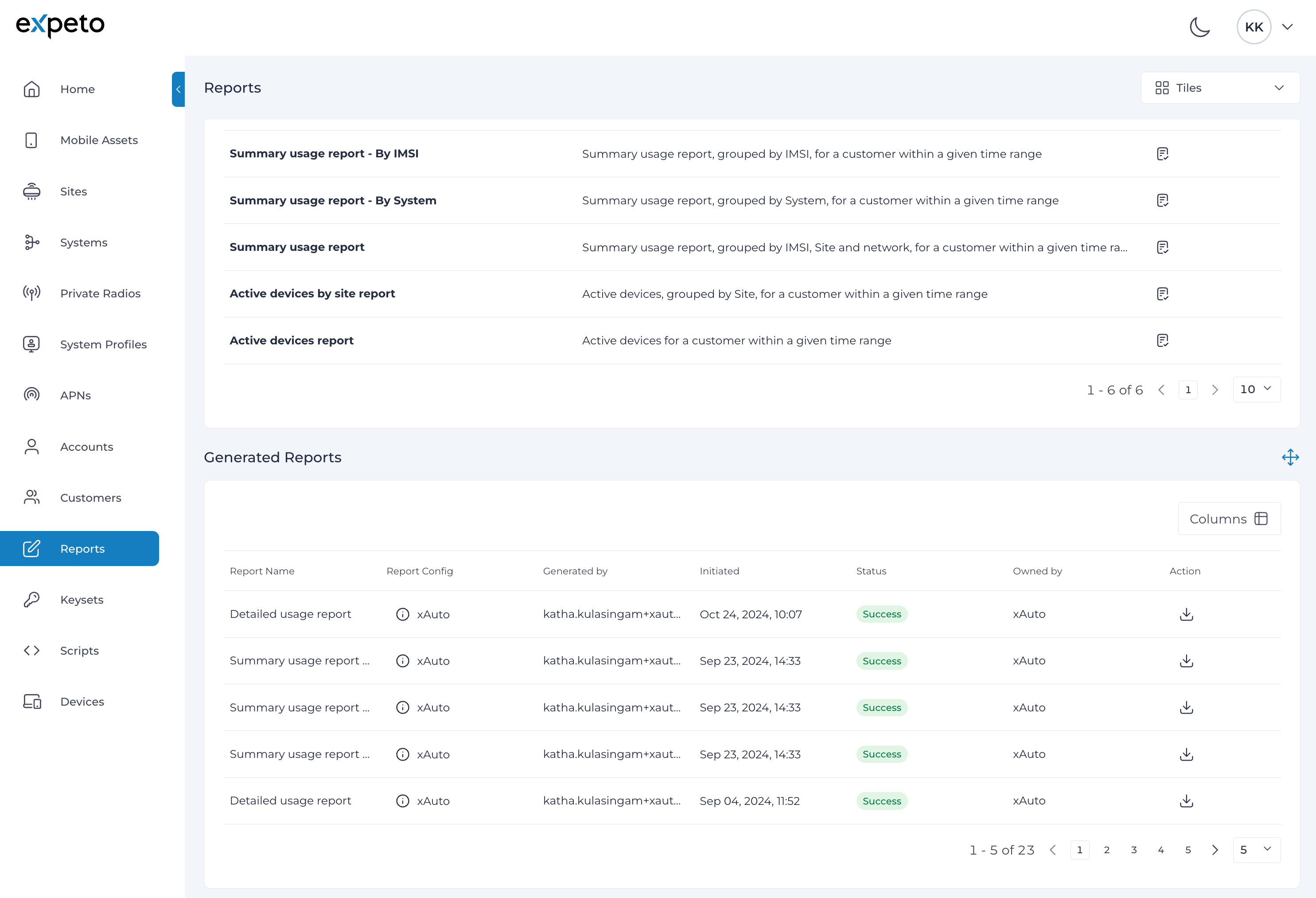
- The Available Reports panel lists predefined report types with descriptions.
- The Generated Reports panel shows previously created reports.
-
Locate the desired report type in the Available Reports panel and click the Generate icon.
- Fill in the required parameters (e.g., date range, customer) and click Submit.
- A new entry will appear in the Generated Reports panel with a Pending status.
- Once complete, the status will update to Success.
- Click the Download icon to retrieve the report.
Report Types⚓︎
The table below lists standard report types. Additional custom templates may be available for your Enterprise.
| Report Type | Description | Includes |
|---|---|---|
| Detailed Usage Report | Comprehensive report covering all usage activity for a Customer. | Customer Name, CustomerID, ICCID, MSISDN, IMEI, IP Address, MCC, MNC, Network Operator Name, Operator Country, Operator Mode, Start Time, End Time, Bytes, MBs, GBs, Site, SiteID, System, SystemID. |
| Summary Usage Report - By IMSI | Focused report showing Subscriber IMSI usage for a given Customer. | IMSI, ICCID, MSISDN, Bytes, MBs, GBs. |
| Summary Usage Report - By System | Report showing System-level usage for a Customer. | System Name, System ID, Bytes, MBs, GBs. |
| Summary Usage Report | Usage grouped by IMSI, Site, and Network Operator for a Customer. | Customer, CustomerID, Site, SiteID, IMSI, ICCID, MSISDN, MCC, MNC, Operator Name, Operator Country, Operator Mode, Bytes, MBs, GBs. |
| Active Devices by Site Report | Text/CSV report showing all active Subscribers grouped by Customer and Site. | Site Name, Site ID, IMSI, MSISDN, MCC, MNC, Network Operator Name, Bytes, MBs, GBs. |
| Active Devices Report | Text/CSV report showing the total number of connected devices for a Customer. | Count of connected devices for a Customer. |
Report Generation Parameters⚓︎
Use the following parameters to customize the content and scope of your report:
| Parameter | Description |
|---|---|
| Date-range | Click the date field and use the calendar to specify the start date and end date. Quick-select options include Last Week, This Week, Last Month, and This Month. |
| Timezone | Pre-populated with your current timezone. To change it, click Timezone and search for a city (e.g., Paris applies Europe/Paris-CEST timezone). |
| Customer | Select a Customer from the list. The report is restricted to the selected Customer and optionally includes child Customers. |
| Customer Extensions to Extract | Specify one or more customer-level Extensions to include in the report. Separate multiple Extensions with commas. Columns are created for each extension, even if not configured (empty values appear). |
| Include Child Customers | Checkbox. Includes usage details for the parent Customer, its child Customers, and all subsequent child Customers. |
| Write Row Count in Footer | Checkbox. Adds the total number of rows at the end of the CSV file. |
Note
Even if the customer-level Extension is not configured, the report will include a column for the extension with blank (empty) values.
View the Report⚓︎
After generating a report, you can download it as a CSV file for further analysis in programs such as MS Excel. Refer to Importing to Excel for instructions on correctly handling the data.
Steps to Download a Report:⚓︎
- Navigate to Reports.
- Locate the Generated Reports panel. The most recently generated report is listed at the top.
- Click the download icon next to the desired report to download the file.
Once downloaded, you can open the file in a spreadsheet tool to view and analyze the report data.
Importing to Excel⚓︎
Warning
By default, MS Excel may treat MSISDN and ICCID values as numerical data with exponents, resulting in raw data loss. Follow the steps below to prevent data display issues for these fields.
Steps to Import the Report in MS Excel:⚓︎
- Open a blank workbook in MS Excel.
- Go to the Data tab and click Get Data.
- Select From File and then click From Text/CSV. This will open the file selection dialog.
- Choose the CSV report file you downloaded. A preview page of the file will appear.
- Important! - For Data Type Detection, select Do not detect data types.
- The raw values (like MSISDN and ICCID) will now display correctly in the preview.
- Click Load to import the data into your workbook.
Additional Tip:⚓︎
To ensure the data remains intact, format the relevant columns (e.g., MSISDN and ICCID) as Text after importing. This prevents further transformations that might alter the raw values.