Manage Mobile Assets⚓︎

Mobile Assets are 4G/LTE or 5G devices identified on the network by their SIM card and uniquely defined by their IMSI (International Mobile Subscriber Identity). These assets, which include smartphones, IoT devices, industrial equipment, and autonomous systems, enable data transfer, telemetry, and operational tasks within private and public mobile networks. Additional identifiers, such as the Mobile Station Integrated Services Digital Network (MSISDN) number, further distinguish Mobile Assets and facilitate their integration into network operations.
In Expeto xControl, Mobile Assets are managed to ensure proper authentication, security, and network functionality. They are configured to belong to specific Customers, assigned to Systems, and associated with System Profiles that define bandwidth, access permissions, and other operational parameters. Administrators can add Mobile Assets individually or in bulk using the Bulk Import feature, ensuring streamlined onboarding and efficient network management. Proper configuration of Mobile Assets is essential for maintaining network integrity and optimizing resource allocation.
To manage Mobile Assets, navigate to the Mobile Assets section in the left navigation panel. This section allows you to view and organize Mobile Assets, manage their status, terminate sessions, and configure advanced properties such as extensions.
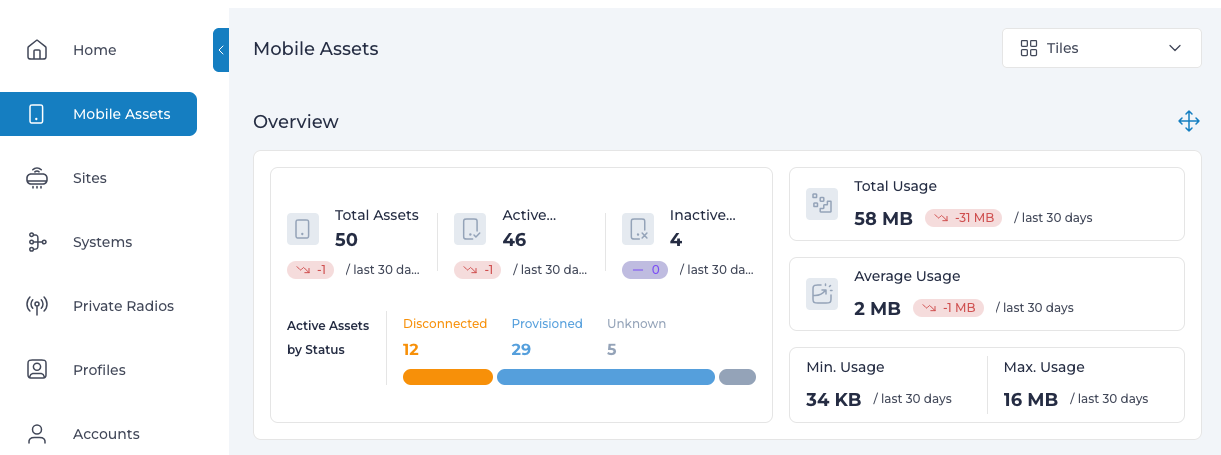
Mobile Asset List⚓︎
The Mobile Asset List displays key details for each Mobile Asset in a tabular format. By default, the following columns are included:
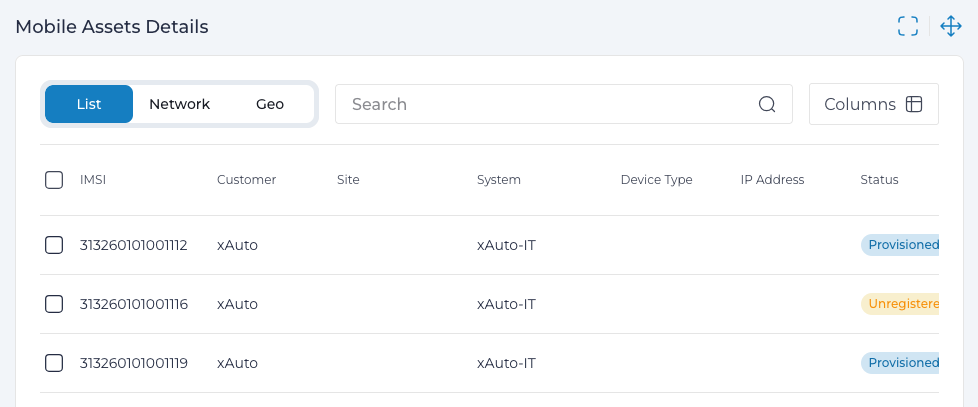
| Column | Description |
|---|---|
| IMSI | A unique numeric identifier for the Mobile Asset. Click the IMSI link or expand the entry to view detailed information. |
| Customer | The customer associated with the Mobile Asset. A single Customer may own multiple Sites, Systems, and Mobile Assets.i |
| Site | The physical location where the Expeto xCore is installed and where the Mobile Asset is attached. |
| System | The System to which the Mobile Asset is assigned, including one or more network gateways owned by the Customer. |
| Device Type | The type of device used to access the System. |
| Status | The current operational status of the Mobile Asset, derived from Gateway and database session states. |
| IMEI | A unique serial number assigned to the device by the manufacturer. |
| IP Address | The IP address currently assigned to the Mobile Asset. |
Customize Columns⚓︎
You can adjust the displayed columns to suit your needs:
- Click the Column Chooser icon.

- Check or uncheck columns to add or remove them from the list view.
The flexibility of the column chooser allows you to focus on the most relevant details for managing Mobile Assets effectively.
Searching⚓︎
The Deep Search feature allows you to locate Mobile Assets based on any associated property, not just those visible in the list.
This powerful search capability supports case-insensitive queries and partial text matches, making it easy to find specific Mobile Assets.

Note
- Wildcards are not supported in the search field.
- For more help on search, see Search Tips
Using Boolean Operators⚓︎
You can refine your searches further by using boolean operators to narrow results. This is particularly useful for searching by labels, properties, or statuses.
Example Searches⚓︎
- Search by Network Type:
Type
4Gto find all Mobile Assets with 4G network sessions. - Search by Status:
Type
errto list all entries with an Error status. - Search by Username: Enter a username associated with a Mobile Asset.
- Search by Label:
Use labels such as
sim-typeorsim-type=UICCto filter specific Mobile Assets based on extensions or tags.
Info
- For more help on search, see Search Tips
Add a Mobile Asset⚓︎
Note
- To add a Mobile Asset, the Add Mobile Asset permission is required. The CUSTOMER_ADMIN role does not include this permission.
- Additionally, your configuration must have a - Customer, Site, System, and System Profile already created.
Steps:
- Navigate to Mobile Assets.
- Click New and fill in the required parameters.
- Click Submit to save the new Mobile Asset.
Identification and SIM Authentication Properties⚓︎
When adding a Mobile Asset, several properties must be configured to ensure proper authentication, network access, and alignment with system requirements. These properties are categorized into two main groups: Identification and SIM Authentication and Network Access and Inherited Properties.
Identification and SIM Authentication Properties⚓︎
| Property | Description |
|---|---|
| IMSI (Required) | The International Mobile Subscriber Identity, a unique numeric identifier for the Mobile Asset. Includes: Mobile Country Code (MCC), Mobile Network Code (MNC), and Mobile Asset Identification Number (MSIN). |
| MSISDN (Required) | The phone number associated with the Mobile Asset, used for communication and identification within the network. |
| ICCID (Optional) | The Integrated Circuit Card Identification Number, an 18–22 digit code printed on the SIM card. Includes information about the country, home network, and unique SIM identifier. |
| K (Required) | A 32-character hexadecimal shared secret key used with the OP value to generate the OPc value for secure authentication. |
| OPC (Required) | The Operator Code, a 32-character unique network-specific value. Used with the shared secret key (K) to ensure secure authentication. |
| Keyset | Select from existing Keysets for SIM authentication security. Only Keysets mapped to an HSS Keyset ID and associated with the current Site are available. A Keyset can be assigned to a Mobile Asset only once. For more details, see Add a Keyset. |
Network Access and Inherited Properties⚓︎
| Property | Description |
|---|---|
| Status | Specifies the current state of the Mobile Asset: |
| - Active: Allows the Mobile Asset to access the network. | |
| - Inactive: Temporarily restricts network access without deleting the Mobile Asset. | |
| Extensions | Custom parameters applied to the Mobile Asset. Extensions at the Mobile Asset level override parameters set at the Customer, System, or System Profile levels. For more information, see Customize with Extensions. |
| Customer | The Enterprise owner of the Mobile Asset, linking it to the Customer’s network and settings. |
| System | The Mobile Asset can be assigned to one System, which defines the network IP address range and related configurations. |
| Profile | Profiles govern bandwidth limitations, extensions, and access settings. Each Mobile Asset must have one System Profile assigned, which can apply standardized settings or tiered service levels (e.g., Gold, Silver, Bronze). Extensions set at the System Profile level override those set at the System or Customer level. |
Add Multiple Mobile Assets from a File⚓︎
- Navigate to Mobile Assets.
- Click the Import button and select Bulk Import.
- Follow the prompts to upload and import an
.outfile.
For detailed information on the required file format and the Bulk Import process, see Perform Bulk Actions.
View / Edit a Mobile Asset⚓︎
Clicking on the IMSI number in the main Mobile Asset list opens the Mobile Asset Details page. This page provides detailed information about the selected Mobile Asset, including its current status, associated customer and system, IP address, and additional configuration details. Use this view to manage and analyze the Mobile Asset’s settings and activity.
The Mobile Asset status is updated in real time and derived from the Mobile Asset's activity recorded in the database and network.
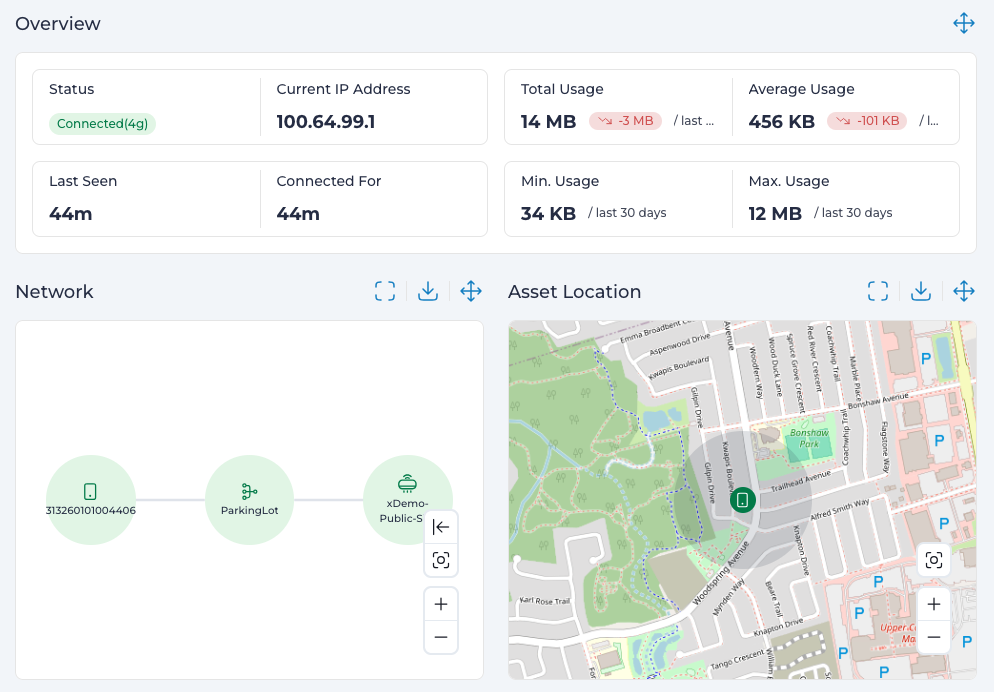
| Section Name | Description |
|---|---|
| Status | Indicates the current connection status of the Mobile Asset. |
| IP Address | The current IP Address of the Mobile Asset. |
| Time Connected/Time Since Connected | The amount of time since the PGW session started, or the time elapsed since the previous PGW session stopped. |
| Last Seen | The time the last verification was made to a connected SIM, or the disconnect time of the last active session. |
| Total Usage | The amount of data used in during the last 30 days. Includes both upload and download. |
| Average Usage | The average data used in during the last 30 days. Includes both upload and download. |
| Minimum Usage | The minimum amount of data bandwidth in a day in the last 30 days. Includes both upload and download. |
| Maximum Usage | The maximum amount of data bandwidth in a day in the last 30 days. Includes both upload and download. |
The following tables show normal and warning status values:
Normal Status Values⚓︎
| Status | Technical Notes | Reason |
|---|---|---|
 |
The mobile asset is registered in the database, but has never has an active session on the network. | This is the initial status for a Mobile Asset. |
 |
The mobile asset has authenticated but does not have a current data session (over data/user plane) on the network. | The device may been powered off, moved out of range, or the SIM card removed. The Disconnected status has expired. Alternatively, the mobile asset is an SMS/IoT device where data plane session is not applicable/available, and the data is transferred over control plane. |
 |
The registered mobile asset has an active data session on the network. | The normal state of an active Subscriber Session. The IP address and network type (3G, 4G or 5G) are displayed. |
 |
The mobile asset's active session on the network was closed | The active session on the network ended recently. This status occurs when the device is put on airplane mode, or the SIM card is physically removed. |
Warning Status Values⚓︎
The following values indicate a problem with normal Mobile Asset operation. Additional troubleshooting may be required.
| Status | Technical Notes | Reason |
|---|---|---|
 |
Warning. The mobile asset is actively connected to the network; however, there is not associated database record. | The mobile asset database server may be down. |
 |
The mobile asset had a previously active session, but is now detach from both the mobile asset database and the network. | The device has been powered off or moved out of range. |
 |
Error state for the network connection. | Causes can include network connection problems to the Gateway, or Gateway failure. |
 |
Error state for the network connection. | Causes can include network connection problems to the database, or database failure. |
 |
The status was unable to be determined. | Cause unknown. |
Mobile Asset Details⚓︎
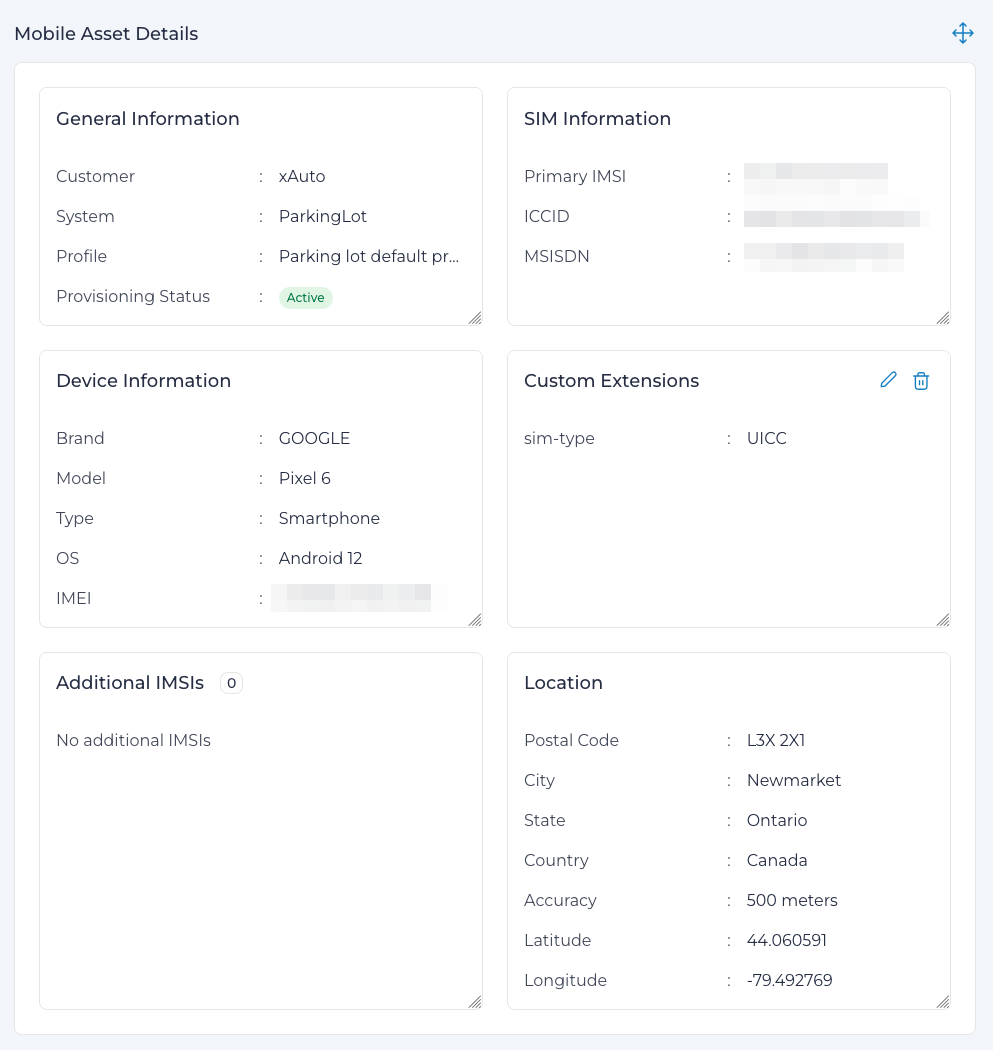
The Mobile Asset Details section provides a comprehensive overview of the Mobile Asset, organized into the following sections:
General Information⚓︎
Displays essential information about the Mobile Asset’s network assignment and status:
- Customer: The entity to which the Mobile Asset is assigned (e.g., "xAuto").
- System: The network system associated with the Mobile Asset (e.g., "ParkingLot").
- System Profile: The system profile applied to the Mobile Asset, defining its bandwidth and network settings.
- Provisioning Status: Indicates whether the Mobile Asset is active or inactive in the network.
SIM Information⚓︎
Shows identifiers for the Mobile Asset's SIM card:
- Primary IMSI: The main IMSI associated with the SIM card.
- ICCID: The unique SIM card identifier.
- MSISDN: The phone number associated with the SIM card.
Device Information⚓︎
Provides details about the Mobile Asset's hardware and software:
- Brand: The manufacturer of the device (e.g., "Google").
- Model: The device model (e.g., "Pixel 6").
- Type: The type of device (e.g., "Smartphone").
- OS: The operating system version (e.g., "Android 12").
- IMEI: The unique identifier for the device.
Custom Extensions⚓︎
Lists any custom parameters or extensions applied to the Mobile Asset:
Example
sim-type set to UICC.
Additional IMSIs⚓︎
Displays alias IMSIs associated with the primary IMSI, if any. If no alias IMSIs are configured, this panel will indicate that there are no additional IMSIs.
Location Map⚓︎
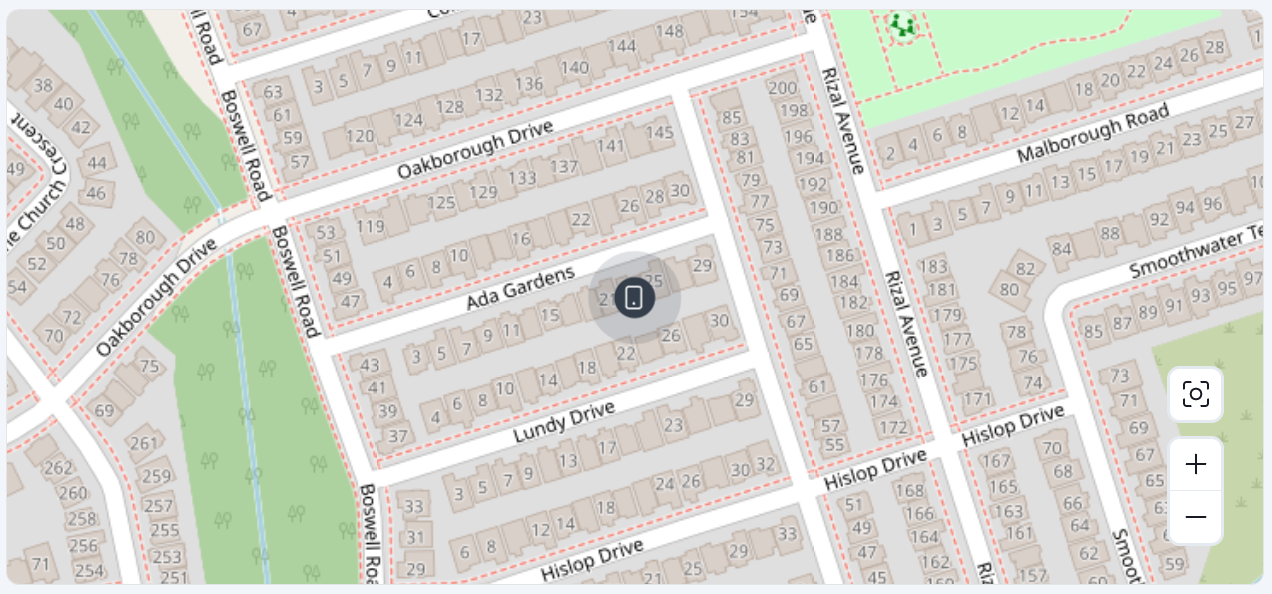
The Location Map provides an approximate location of a Mobile Asset when it is connected to a public or public/private network. This feature is useful for tracking device activity and ensuring network coverage across various areas.
How Location is Determined⚓︎
Location data is derived from cell tower triangulation, which estimates the Mobile Asset's position based on signals from nearby towers. Accuracy may vary depending on tower placement:
- Accuracy Range: Typically between 500 meters and 1500 meters.
Viewing Location Details⚓︎
Hover over the location marker on the map to view additional data about the Mobile Asset’s position:
- Coordinates: Latitude and longitude of the Mobile Asset.
- Accuracy Value: Indicates the confidence in the location estimate.
Note
A lower accuracy value represents higher precision and a smaller margin of error.
Note
The location map is available only for Mobile Assets connected via public or public/private networks. It does not apply to private-only networks.
Mobile Asset Actions⚓︎
Activate or Deactivate Mobile Assets⚓︎
Activating or deactivating a Mobile Asset controls its ability to connect and initiate a network session:
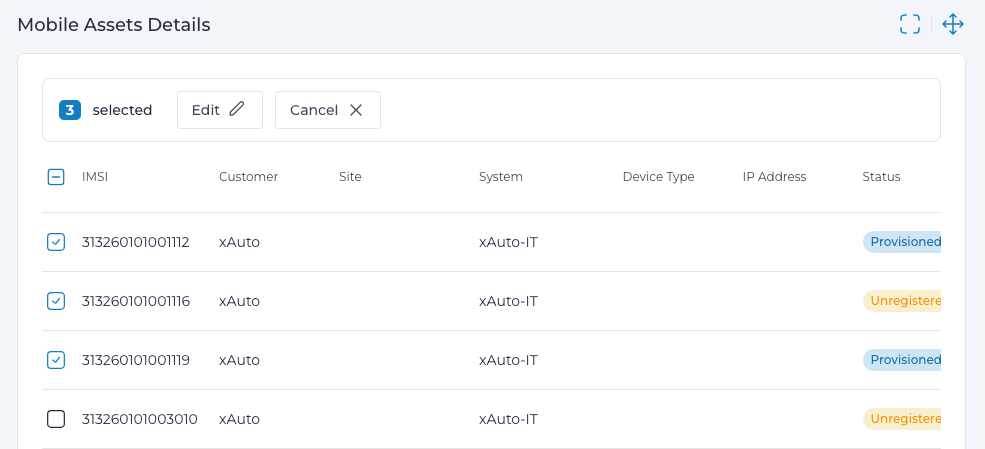
- Active: The Mobile Asset can initiate and maintain active sessions.
- Inactive: The Mobile Asset is temporarily disabled and cannot have an active session.
This functionality is useful for temporarily restricting access without permanently deleting the Mobile Asset.
Activate or Deactivate a Single Mobile Asset⚓︎
- Navigate to the Mobile Assets section.
- Locate the desired Mobile Asset in the list and click its IMSI link.
- In the details view, click Edit.
- For the Status field, select either Active or Inactive.
- Click Submit to save your changes.
Bulk Activate/Deactivate Multiple Mobile Assets⚓︎
- Navigate to the Mobile Assets section.
- Select the checkboxes next to the Mobile Assets you wish to modify.
- Click the Edit button.
- Leave all fields blank except for the Status field.
- Choose Active or Inactive from the Status dropdown.
- Click Submit to apply the changes.
This bulk operation streamlines the management of multiple Mobile Assets, ensuring efficient status updates across the network.
Cancel Session⚓︎
To cancel (terminate) a Mobile Asset session:
- Navigate to the Mobile Assets.
- Find the Mobile Asset in the list and click the IMSI link.
- Click the more button (...) and then click Cancel Session.
Note
This action triggers a series of network events to terminate the Mobile Asset's session:
-
For 4G/LTE networks: The Home Subscriber Server (HSS) sends a Cancel-Location-Request (CLR) to the Mobility Management Entity (MME). This instructs the network to withdraw the user subscription associated with the IMSI, effectively deregistering the Mobile Asset.
-
For 5G Standalone (SA) deployments: The Unified Data Management (UDM) service notifies registered Network Functions, such as the Access and Mobility Management Function (AMF), of the session deregistration. This action signals the network to terminate the active session.
-
Session Termination: Once deregistration is complete, the Mobile Asset’s session is fully terminated and removed from the network.
-
Session Restoration: After termination, the Mobile Asset may initiate a new session request, depending on the device configuration and network policies. This allows the session to be restored if necessary.
Additional IMSIs⚓︎
Expeto xControl supports Multi-IMSI SIM cards, which allow a single SIM card to host multiple IMSIs (International Mobile Subscriber Identities). These SIM cards provide flexibility for devices that need to operate in multiple network environments or require fallback identities for redundancy.
Understanding Primary and Alias IMSIs⚓︎
- The Primary IMSI is the main identifier for the SIM card and is used as the default identity for network operations.
- Alias IMSIs are secondary identities that can be added to the SIM card. These are typically used for specific use cases, such as enabling multi-network access, testing, or separating specific traffic.
Adding an Alias IMSI⚓︎
Alias IMSIs can be added to the primary IMSI to extend the functionality of the Mobile Asset. To add an alias IMSI:
- Navigate to the IMSI section in the Mobile Asset details.
- Click the Add
 button.
 - Enter the alias IMSI value in the provided field.
- Click Save to confirm.
Once added:
- All IMSIs, including the primary IMSI and alias IMSIs, appear in the IMSI section of the Mobile Asset details.
- Only the Primary IMSI is displayed in the main Mobile Assets list for clarity.
Note
The primary IMSI remains the default identity for all operations, including network authentication and configuration.
Limitations and Considerations⚓︎
- Static IP Address: Any static IP address assigned to the Mobile Asset applies exclusively to the primary IMSI. Alias IMSIs cannot have separate static IPs.
- MSISDN: The phone number (MSISDN) is also tied only to the primary IMSI and cannot be assigned to alias IMSIs.
Use Cases for Multi-IMSI Support⚓︎
- Network Redundancy: Allows devices to switch seamlessly between networks if the primary IMSI is unavailable or lacks coverage.
- Regional Customization: Alias IMSIs can be used for devices that operate in different countries, enabling compliance with local network requirements.
- Testing and Validation: Alias IMSIs can be assigned for testing new network setups without disrupting the primary IMSI’s configuration.
Multi-IMSI functionality provides robust flexibility for managing Mobile Assets in diverse and complex network environments. By leveraging alias IMSIs, administrators can ensure seamless connectivity and adaptability across multiple scenarios.
Set Extensions for Mobile Assets⚓︎
Click Edit in the Mobile Asset Details page.
Extensions are key value pairs.
There are specific extensions used to provide functionality not yet available through the xControl GUI. For example, setting a static IP address for a Mobile Asset.
Example
ip=100.64.12.123
Other extensions are used to tag Mobile Assets with labels that help find the Mobile Asset during search queries.
Example
deviceType=samsung user=Joe
For more information on creating Extensions, see Extensions.