Exploring APIs with HAL⚓︎
The REST API is HATEOAS-enabled (Hypermedia as the Engine of Application State), meaning API clients can dynamically interact with the API using hypermedia links.
These links enhance API exploration by providing extended URIs to related resources.
For example, a GET request on a Subscriber resource returns its attributes along with hyperlinks to associated resources such as Customer, Group, or keysets, even though these are not defined as Subscriber resource attributes.
Take full advantage of hypermedia links by using a client like HAL Explorer. Follow these steps to explore resources:
- Log into xControl with your admin credentials.
- Open a new browser tab and navigate to the API root URL in HAL Explorer. For example:
https://api.example.com/v1/explorer - The Links section displays all available resources. Click the green arrow (GET) to open the HTTP Request Input template for a resource.
- Click Go! to execute the request.
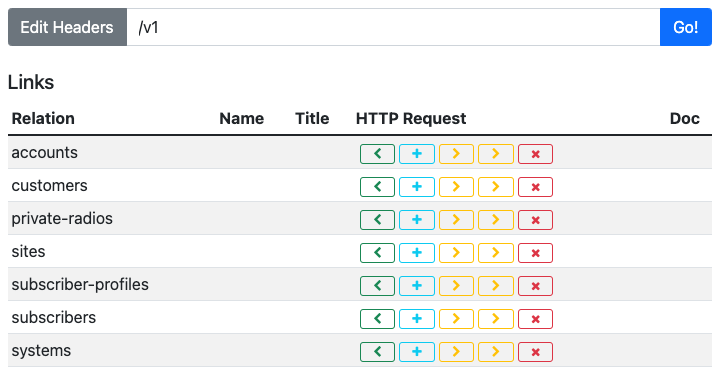
Alternatively, you can use the Edit Headers field to type the path to target a specific resource root endpoint. For example, the following path targets the subs endpoint and click:
/v1/subs
Note
- Endpoint paths may differ from resource names. For example, the
subscribersresource uses the/v1/subsendpoint. - Refer to HAL Explorer documentation site for more detail on how to use.
Error Handling⚓︎
If you do not have permissions for a resource, the API returns an AccessDenied error:
    {
      "status": 403,
      "error": "AccessDenied",
      "message": "The Security Framework denied access for this request. You are probably not allowed to access this resource.",
      "path": "/v1/customers",
      "timestamp": 1626387747246,
      "incident": "40530304"
    }
Pagination⚓︎
Responses in HAL include a page element to manage data display and navigation. For example, a GET request to /subs returns all subscribers, organized across multiple pages. The page element specifies:
size: Maximum number of resources per page.totalElements: Total number of resources.totalPages: Total number of pages.number: Current page (0-based index).
Example Response:
    {
      "page": {
        "size": 20,
        "totalElements": 74752,
        "totalPages": 3738,
        "number": 0
      }
    }
Navigate pages in HAL Explorer using the first, prev, next, and last links in the response.
Resource Attributes⚓︎
Each resource includes attributes that form its schema. For example, the subscribers resource returns:
    {
      "imsi": "123456313212312",
      "msisdn": "+199938382204417",
      "k": "###MASKED###",
      "opc": null,
      "iccid": "12348901260230613137",
      "status": "Active",
      "type": null,
      "extensions": {
        "sim-type": "UICC",
        "user": "SirGrob"
      }
    }
Hypermedia Links⚓︎
Resources include a _links section with hypermedia links for related operations. For example, the Subscriber resource for a customer_admin role includes:
selfsubscriberprofile
To retrieve the System Profile, send a GET request using the systemProfile link:
{baseUrl}/v1/subs/<IMSI>/systemProfile
Example Response:
    {
      "name": "default",
      "defaultApn": "internet",
      "uploadBitRate": 20971520,
      "downloadBitRate": 31457280,
      "extensions": {}
    }
Example Request⚓︎
The following example shows how to use a deep projection request and hyperlinks to get extensive information about a specific customer.
To enhance response details for the customer resource using projection parameters:
-
Make an GET request to return a list of customers:
{baseUrl}/v1/customers -
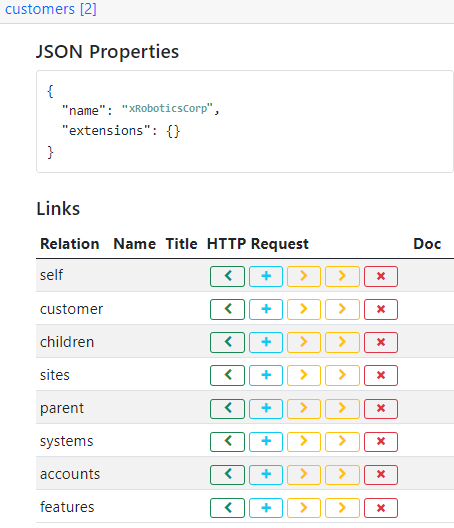
Select one of the customers to view the standard response for that customer, consisting of the name and any extensions. The JSON properties and the Links sections appear.
-
Click the green arrow (GET) on the customer hyperlink. The template appears with an Expanded URI containing the customerID:
{baseUrl}/v1/customers/87089251
-
For the projection parameter, type deep. The parameter is appended to the URI:
{baseUrl}/v1/customers/123854?projection=deep
-
Click Go.
Comprehensive responses include statistics and hierarchical relationships:
    {
      "siteCount": 1,
      "systemCount": 5,
      "subscriberCount": 26
    }
If no results are found, the response will indicate "totalElements": 0:
    {
      "page": {
        "size": 10,
        "totalElements": 0,
        "totalPages": 0,
        "number": 0
      }
    }