Bulk Actions
Overview⚓︎
The Bulk Actions feature in Expeto xControl streamlines the management of multiple Mobile Assets by enabling the following operations:
- Bulk Import: Add Mobile Assets in large quantities using a
.outfile. This method ensures efficient data entry and allows configuration of parameters such as Customer, System, System Profile, Keyset, and initial status. - Bulk Update: Modify or configure multiple Mobile Assets simultaneously. Updates can include changing status, assigning a System Profile, adding Extensions, or moving assets to a new System. This can be done directly or via a CSV file export/import process.
- Bulk Delete: Permanently remove multiple Mobile Assets from the list, freeing up resources and decluttering your network configuration.
These tools reduce manual effort, ensure data consistency, and enable administrators to efficiently manage large-scale Mobile Asset deployments.
Bulk Import⚓︎
The bulk import feature streamlines the process of adding multiple Mobile Assets to the system by uploading an .out file. This file contains the required details, such as IMSI values, along with optional configuration parameters. Once imported, the Mobile Assets are listed under the chosen System in the Mobile Asset list.
Key Features:⚓︎
- Supports importing Mobile Asset details in bulk using a
.outfile. - Allows configuration of parameters such as Customer, System, System Profile, Keyset, and initial status.
- Includes validation checks to ensure file accuracy and proper mapping of columns.
- Provides flexibility to add Extensions for custom parameters.
How to Perform a Bulk Import⚓︎
- Navigate to the Mobile Assets page.
- Click the Import button:
 , then select Import Import.
 - Click Choose File and select the
.outfile to import.- If the file format is incorrect or validation errors occur, you will be notified.
- If the file format is valid, the column mapping interface will appear.
- Assign Expeto-specific parameters to the Mobile Assets. For example:
- Customer: Select the associated Customer.
- System: Choose the target System.
- System Profile: Assign a System Profile for the Mobile Assets.
- Keyset: Link an encryption Keyset for authentication.
- Generate a 128-bit (32-character) hexadecimal string and paste it into the K encryption key field. This key is used to encrypt Mobile Asset authentication values.
- Select the Initial Status for the Mobile Assets:
- Active: Enables network access immediately.
- Inactive: Prevents network access until manually activated.
- Add any Extensions to set custom parameters for all imported Mobile Assets.
For example, to add an import timestamp, use:
- Key:
importDate - Value:
January20
- Key:
- Enable the Overwrite if Existing checkbox to replace any existing Mobile Asset with the same IMSI.
- If this option is disabled and duplicates are found, the import will fail.
- Click Submit to complete the import process. The imported Mobile Assets will appear in the list.
Notes and Tips⚓︎
Note
Only the .out file format is supported for bulk imports.
Note
The K encryption key is critical for generating the Mobile Asset authentication key (Ki).
Tip
Consider creating a "parking lot" System to temporarily store Mobile Assets during bulk imports.
File Content and Validation⚓︎
Before importing, the .out file undergoes a validation process to ensure proper formatting and headers. Common validation errors include:
- Missing or invalid headers.
- Missing mappings for required fields.
- Incorrect IMSI formats.
- Mismatched column counts.
Required Fields:⚓︎
- ICCID: The Integrated Circuit Card Identifier, engraved on the SIM card.
- KI: The Key Identifier, encrypted using the provided K encryption key.
- IMSI: The International Mobile Subscriber Identity, uniquely identifying each Mobile Asset.
Note
Auxiliary IMSI values are ignored during the import process.
Example .out File:⚓︎
Below is an example of a properly formatted .out file:
**************************************
*       HEADER DESCRIPTION           *
**************************************
Customer: Unreal Communications
Quantity: 6
Type:     PLUG-IN
Profile:  1.0
Batch:
*
Transport_key:
*
Graph_ref : 2.0

Address1: Unreal Communications
Address2: TBC Address3
Address4: TBC Address5
Artwork:  <artwork file>

***************************************
*       INPUT VARIABLES               *
***************************************
Var_In_List:

IMSI1:    123799534412226
IMSI2:    456060048546604
SER_NB:  1924120429575334375

***************************************
*       OUTPUT VARIABLE               *
***************************************
var out:ICC_ID/KI/IMSI/IMSI2/OPc/PIN1/PUK1/PIN2/PUK2/ADM
1924120429575334375 '8978B79E7C104F678FA5C336509DB188 123799534412226 456060048546604 6F2E82855DEE7C893CB1F7A72FD08B57 0000 05185749 2847 60978080 76183215
1924120429575334376 '8978B79E7C104F678FA5C336509DB188 123799534412227 456060048546605 6F2E82855DEE7C893CB1F7A72FD08B57 0000 05185749 2847 60978080 76183215
1924120429575334377 '8978B79E7C104F678FA5C336509DB188 123799534412228 456060048546606 6F2E82855DEE7C893CB1F7A72FD08B57 0000 05185749 2847 60978080 76183215
1924120429575334378 '8978B79E7C104F678FA5C336509DB188 123799534412229 456060048546607 6F2E82855DEE7C893CB1F7A72FD08B57 0000 05185749 2847 60978080 76183215
1924120429575334379 '8978B79E7C104F678FA5C336509DB188 123799534412230 456060048546608 6F2E82855DEE7C893CB1F7A72FD08B57 0000 05185749 2847 60978080 76183215
1924120429575334380 '8978B79E7C104F678FA5C336509DB188 123799534412231 456060048546609 6F2E82855DEE7C893CB1F7A72FD08B57 0000 05185749 2847 60978080 76183215
Bulk Update⚓︎
The Bulk Update feature enables administrators to modify existing values or apply new configurations to multiple Mobile Assets simultaneously. This streamlined process allows for efficient management of Mobile Assets with consistent updates.
Common Bulk Update Tasks⚓︎
The following tasks can be performed using the Bulk Update feature:
- Activate or Deactivate Mobile Assets: Change the status of selected Mobile Assets.
- Move Mobile Assets to a New System: Relocate all selected assets to a single target System.
- Assign a System Profile: Apply a System Profile to selected Mobile Assets. System Profiles are System-specific; you must select a System before assigning a System Profile.
- Add Extensions: Assign the same custom Extensions to all selected Mobile Assets.
Note
To modify the status of Mobile Assets across different Systems without changing their System assignments, use the Bulk Update - CSV feature.
Steps to Perform a Bulk Update⚓︎
- Navigate to the Mobile Assets page.
- Select the Mobile Assets to update:
- Use the checkboxes to select individual Mobile Assets or select all using the "Select All" checkbox.
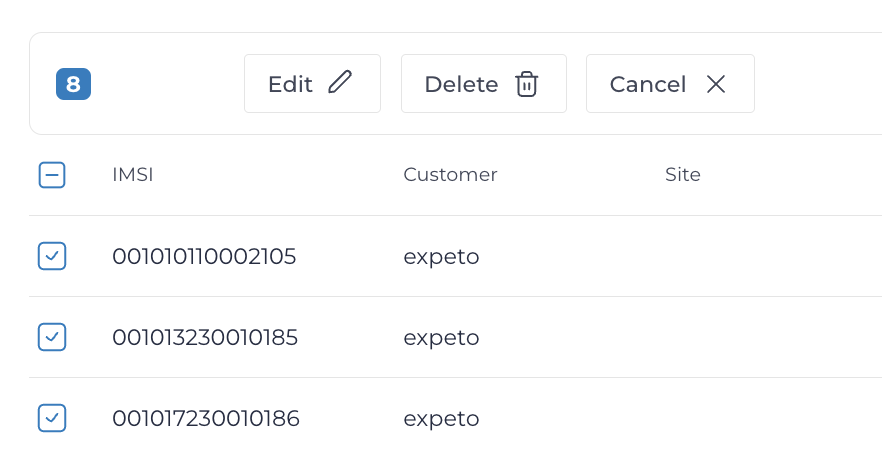
- Use the checkboxes to select individual Mobile Assets or select all using the "Select All" checkbox.
- Click Edit. The Update page displays the number of Mobile Assets selected for modification.
- Provide updated values for the selected Mobile Asset parameters. Existing values will be replaced by the new inputs.
- Click Save to confirm and apply the updates. You will be prompted to verify the request before changes are applied.
Bulk Delete⚓︎
The Bulk Delete feature allows you to permanently remove multiple Mobile Assets from the Mobile Asset list. This action is irreversible unless specific System-level permissions are available to restore deleted assets.
Warning
Once deleted, Mobile Assets cannot be recovered without System-level permission. Ensure you have the necessary access and have confirmed the selection before proceeding.
Steps to Perform a Bulk Delete⚓︎
- Navigate to the Mobile Assets page.
- Select the Mobile Assets you want to delete:
- Use the checkboxes to select individual Mobile Assets or select all using the "Select All" checkbox.
- Click Delete to initiate the removal process.
- A confirmation dialog will appear. Click OK to confirm and complete the deletion.
Note
Always double-check your selection to avoid accidental deletion of critical Mobile Assets.
Export to CSV⚓︎
The Export to CSV feature allows you to download a file containing the current configuration of all Mobile Assets for editing or record-keeping purposes.
Steps to Export a CSV File⚓︎
- Navigate to the Mobile Assets page.
- Click the Export button
 .
.
Note
The exported CSV file contains data for all Mobile Assets in the system. It is not possible to export a file for selected Mobile Assets only.
Updating and Re-Importing the CSV File⚓︎
To make changes using the exported file:
- Open the downloaded CSV file in a text editor or spreadsheet application.
- Modify the desired values and save the file with a
.csvextension. - Navigate to the Mobile Assets page and click Bulk Actions.
- Select Bulk CSV Update.
- Click Choose File and upload the modified
.csvfile. Click Next to proceed. - The file is verified for formatting errors. If no issues are found, click Submit to apply the updates.
CSV File Format⚓︎
When preparing a CSV file for bulk updates, ensure the required columns are correctly formatted and all necessary information is included.
Required Columns⚓︎
| Column | Description |
|---|---|
| IMSI | The IMSI value cannot be updated. This required value identifies the Mobile Asset and must be unique within the CSV file. |
| ICCID | The ICCID associated with the IMSI. This cannot be updated. Leave the field empty if no change is needed. |
| MSISDN | The MSISDN associated with the IMSI. This cannot be updated. Leave the field empty if no change is needed. |
| STATUS | The status of the Mobile Asset. Valid values are ACTIVE or INACTIVE. |
| SYSTEM | The System ID where the Mobile Asset is assigned. Copy the System ID value from the URL of the selected System (e.g., https://admin.example.com/ngui/sys/**123295600**). Optionally, add the System name after the ID (e.g., 123295600 default). The System name must match the ID. |
| SYSTEMPROFILE | The System Profile ID to assign to the Mobile Asset. Copy the System Profile ID value from the URL of the selected System Profile (e.g., https://admin.example.com/%7CxControlURLPath%7C/system-profiles/**98144**). |
| EXT: | Extensions are key-value pairs used for additional parameters or overrides. Each EXT: column represents an extension key, with corresponding values in the rows. Leave the cell empty to remove the extension. Example: For the extension brand=acme, use a column header EXT:brand and the value acme. |
Example File Structure⚓︎
An example of a CSV file structure is shown below:

To change a parameter value, edit the corresponding cell in the row for the Mobile Asset. Leave the cell blank to set the value to null.